
Classroom AV Setup: Visualisers and Interactive Panels
Plan a classroom AV setup around what teachers need to show, annotate, and control.
Use a visualizer for physical material
An overhead visualizer can show handwriting, book pages, or a hands-on demonstration on the main display. Choose USB if the classroom workflow runs through a computer. For direct connection to a display, look for HDMI output and confirm the input on the display.
Choose the display around the room
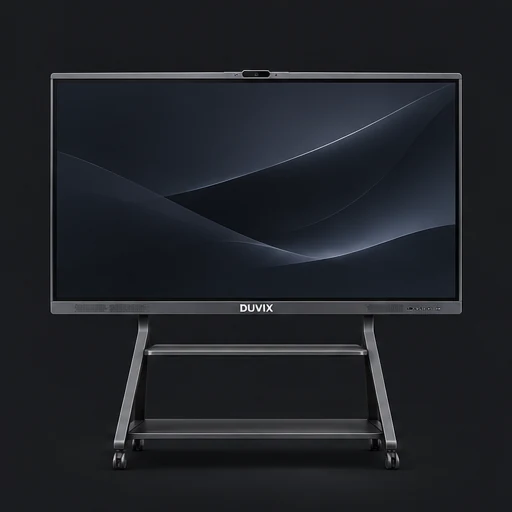
DUVIX shows 65-, 75-, and 86-inch panel concepts. To narrow the size, check whether small text is legible from the furthest seats and whether teachers can comfortably reach the interactive area. Leave space for the stand or wall mount.
Let the teacher move around
A presenter remote is useful when teaching from slides away from the laptop. Check the presentation app, the connection type, and any software needed for features such as digital highlighting. Before rollout, walk through a real lesson from connecting the laptop to switching between slides and the visualizer.
What to check at school
Run one sample lesson that switches from a printed worksheet under the document camera to annotation on the interactive panel.